

Yes, you can automate QuickBooks. Start by turning on invoice reminders and setting up bank rules for your recurring vendors, since those two moves alone cut hours of manual entry every month. From there, expand into templated workflows and app integrations. Just test every change in a sandbox first and keep an eye on the audit log so nothing slips past your review.
TL;DR:
- Prioritize automating invoice reminders and bank rules first, as they significantly reduce manual work and improve cash collection speed.
- Use native QuickBooks workflows for quick setup and auditability, but consider third-party tools or API work for complex or high-volume automation needs.
- Test each workflow thoroughly in a sandbox environment and monitor reconciliation weekly during rollout to catch errors early.
- Focus automation efforts on exceptions like overdue invoices, large payments, and recurring vendor charges to maximize time and cash flow benefits.
- Automations should be built gradually, with clear ownership, documentation, and ongoing review, especially for multi-entity or custom API solutions.
Table of Contents
- What Are Your Options to Automate QuickBooks Workflows?
- How Do You Set Up QuickBooks Workflows and Templates?
- How Do Zapier, Connectors, and the QuickBooks API Work Together?
- Which QuickBooks Automations Should You Prioritize First?
- What Belongs on Your QuickBooks Automation Rollout Checklist?
- How Does Byram Advisory Approach QuickBooks Automation for Firms?
- What Do Most Firms Get Wrong About Automating QuickBooks?
- Get Hands-On Help Automating QuickBooks the Right Way
- Where to Go for Official QuickBooks Automation Documentation
- Sources
What Are Your Options to Automate QuickBooks Workflows?
Three paths exist, and picking the wrong one wastes weeks. Native workflows live inside QuickBooks Online Advanced and cover the basics: bank rules, receipt capture, and template-based approval chains. Third-party connectors like Zapier and Make sit outside QuickBooks and link it to your CRM, e-commerce platform, or Slack. The QuickBooks API sits underneath both, letting developers build custom logic when the off-the-shelf tools can't keep up.
Each option trades speed for flexibility:
- Native workflows: fastest to set up, fully auditable inside QuickBooks, but limited to what Intuit has already built.
- Zapier or Make: broad reach across hundreds of apps, moderate setup time, but you're dependent on a third party's uptime.
- Direct API work: total control and custom logic, but it demands developer time and careful handling of rate limits.
Multi-entity operations or complex inventory usually push you toward the API.
How Do You Set Up QuickBooks Workflows and Templates?
QuickBooks Online Advanced ships with a workflow builder that most users never open. It sits under Settings → Manage workflows, and Intuit's own documentation shows 60+ templates covering invoicing, bill approvals, and project tasks. You don't build from scratch. You pick a template, adjust the trigger, and assign an owner.
Here's the sequence that works for most teams:
- Go to Manage workflows and browse the template library before building anything custom.
- Enable invoice reminder workflows first. Set the trigger for invoices unpaid at 7 and 30 days.
- Turn on bill approval routing so invoices over a set dollar threshold require a manager's sign-off before payment.
- Add monthly statement automation for customers with recurring balances, so nobody chases a statement by hand.
Every action a workflow takes gets logged. QuickBooks records who approved what and when, so you can hand that trail to an auditor without extra work.
Pro Tip: Build one workflow at a time and let it run for a full billing cycle before adding the next. Stacking five new automations in the same week makes it nearly impossible to trace which one caused an exception.
How Do Zapier, Connectors, and the QuickBooks API Work Together?
Native workflows handle what happens inside QuickBooks. Everything that touches an outside system needs a connector or direct API call. A common setup: an e-commerce order triggers a sales receipt in QuickBooks, a paid invoice fires a Slack alert to your AR team, or a closed deal in your CRM generates a draft invoice automatically. Zapier's own QuickBooks integration guide walks through several of these exact flows.

The catch is volume. QuickBooks' REST API enforces call limits and throttling, so a connector firing hundreds of requests in a short window can start failing silently if nobody built in retry logic.
Three things protect your data when integrations run at scale:
- Automatic retries for failed calls, so a temporary timeout doesn't drop a transaction entirely.
- A dead-letter queue that catches anything retries can't fix, instead of letting it vanish.
- A human exception queue where a person reviews the handful of transactions the system couldn't process.
Firms that skip the exception queue tend to discover the gap during month-end close, which is the worst possible time to find it.
Which QuickBooks Automations Should You Prioritize First?
Not every automation deserves your time in week one. Rank them by how much manual work they eliminate and how much cash they free up:
- Invoice reminders and dunning. Set reminders at intervals after invoices become overdue. This is usually the single fastest way to shrink days sales outstanding.
- Bank rules for recurring vendors. Auto-categorize the same rent, software, and utility charges every month instead of touching them by hand.
- Monthly customer statements. Automate delivery so nobody manually pulls balances at month-end.
- Bill approval routing. Route anything over a set threshold to a manager before it's paid.
- Receipt capture and matching. Mobile capture tools feed expenses directly into QuickBooks and match them to existing transactions.
QuickBooks reports that automated reminders and categorization improve time savings and speed up collections for firms that adopt them. The pattern holds across most client books: dunning and bank rules deliver the fastest payback, while receipt capture and approval routing save more time as transaction volume grows.
What Belongs on Your QuickBooks Automation Rollout Checklist?
A rollout that skips testing is how a bank rule miscategorizes six months of transactions before anyone notices. Work through four stages, in order.
- Design: map every trigger, the action it fires, and who owns exceptions when the automation fails.
- Test: run each workflow in a sandbox, then pilot it on a small customer subset before going firm-wide.
- Deploy: roll out in stages, with a documented fallback if a workflow misfires.
- Monitor: check reconciliation weekly for the first month, and track your exception rate as the real health metric.
Pro Tip: Set a recurring monthly review of every active workflow, even ones running fine. Vendors change payment terms, customers change bank accounts, and a bank rule that worked in January can silently miscategorize transactions by June.
How Does Byram Advisory Approach QuickBooks Automation for Firms?
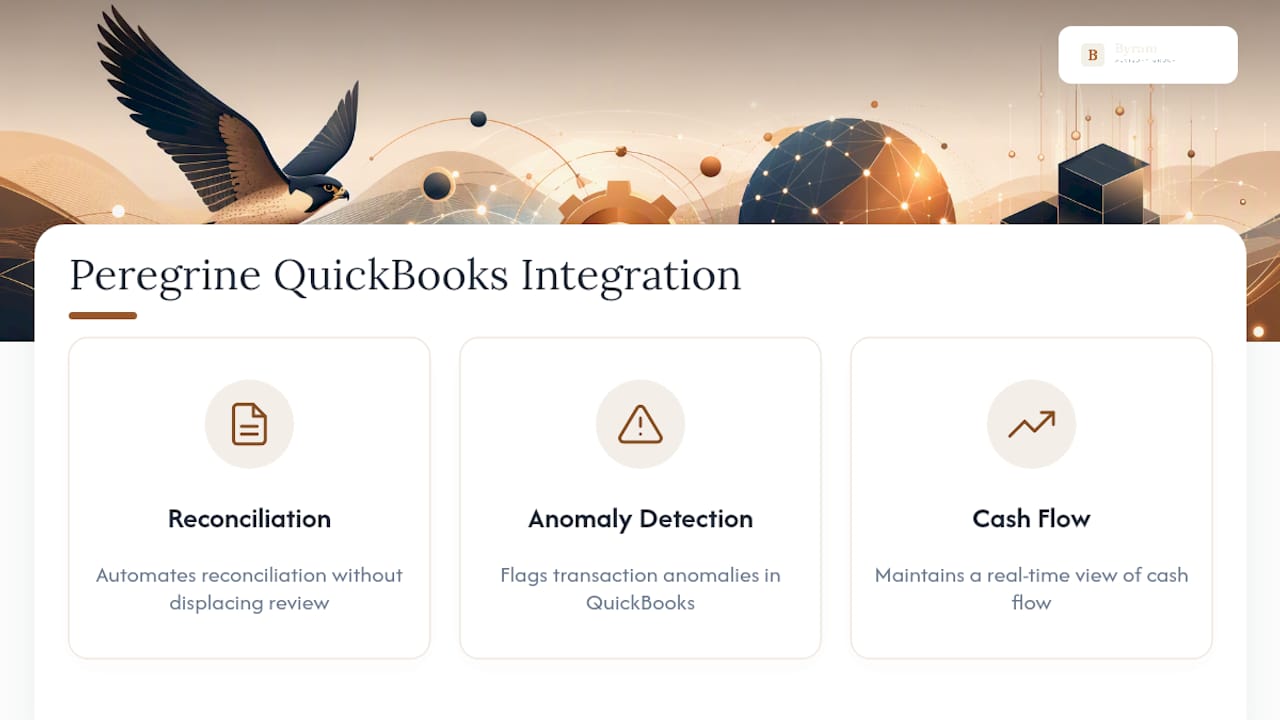
Firms that come to Byram Advisory usually have QuickBooks running fine on the surface, but no visibility into what's happening underneath. Our platform, Peregrine, integrates directly with QuickBooks to automate reconciliation, flag transaction anomalies, and keep a real-time view of cash flow without displacing the review your team already does.
We back that with a free Field Guide for firms that want to self-implement, plus a structured course for teams that need guided training. Some setups, like agentic workflows across multiple client entities or custom API builds for complex inventory, benefit from bringing in a consultant instead of going fully DIY.
What Do Most Firms Get Wrong About Automating QuickBooks?
Most teams automate the wrong things first. They chase every low-value task they can find instead of targeting the exceptions that actually eat their week. Treat your staff as exception managers, not displaced labor. One rule for day one: never automate a process you haven't manually run correctly at least three times.
— Owen
Get Hands-On Help Automating QuickBooks the Right Way
Byram Advisory gets your team past the DIY trial-and-error stage faster than piecing together workflows and connectors on your own, because our resources are built specifically for fractional CFOs and accounting firms managing multiple client books.
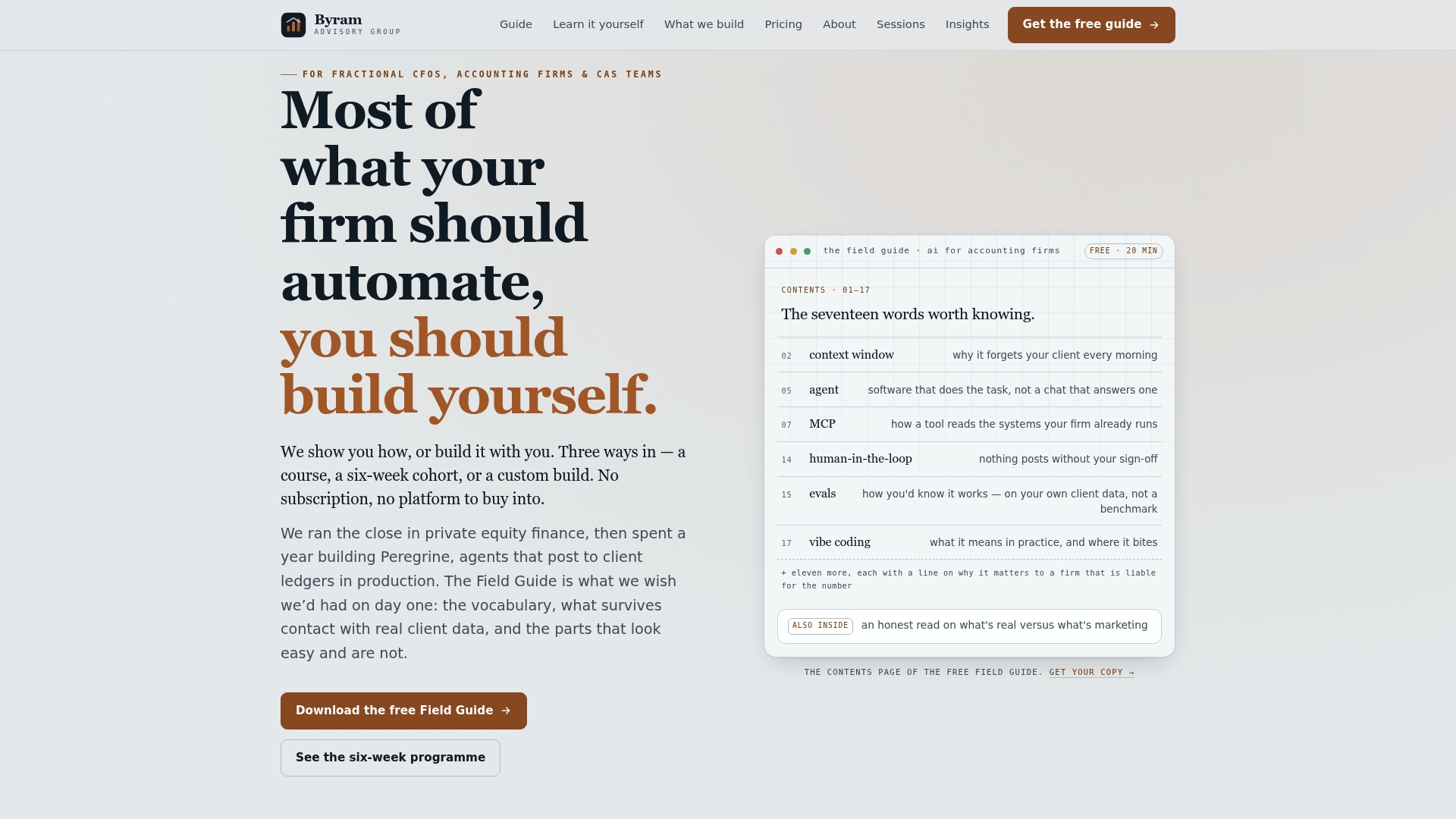
Our Peregrine platform integrates directly with QuickBooks to automate reconciliation, catch transaction anomalies before they hit a client's books, and give you a real-time cash flow view without losing oversight. If you'd rather start on your own, download the free Field Guide for a step-by-step walkthrough, or enroll in the $500 DIY implementation course for structured, self-paced training. Firms with more complex needs, like multi-entity reconciliation or custom API builds, can work with us directly on a managed engagement. Visit the Byram Advisory homepage to see which option fits your firm and get started this week.
Where to Go for Official QuickBooks Automation Documentation
For the technical details behind everything above, go straight to the source. QuickBooks' automation and AI features page covers what's built into the product today. Intuit's developer documentation on API limits explains throttling rules before you build a custom integration. The workflow templates support article walks through setting up the templates covered in this guide.