

The QuickBooks audit log is the built-in record that shows who changed what, when, and how, inside your books. To open it right now: click the Gear icon → Audit Log, or go to Reports → Audit Log. QuickBooks Online keeps these events available for two years, while QuickBooks Desktop's Audit Trail sticks around until the file gets condensed.
- QuickBooks Online: Gear icon → Audit Log, or Reports → Audit Log
- QuickBooks Desktop: Reports → Accountant & Taxes → Audit Trail
- Retention: two years for QBO events; unlimited for Desktop until condense
Key Takeaways
The QuickBooks audit log works because it records every change automatically and without an on/off switch, giving you a permanent, searchable trail of who touched what and when.
| Point | Details |
|---|---|
| Open it in two clicks | Use Gear icon → Audit Log or Reports → Audit Log in QuickBooks Online. |
| Know your retention window | QBO keeps events two years; Desktop keeps them until the file is condensed. |
| Check permissions first | Only admin or full-access users can view the Audit Log in QuickBooks Online. |
| Filter smart for deletions | Set Events to "Deleted" with a narrow date range to find removed transactions fast. |
| Automate the recurring scan | Byram Advisory builds scheduled exports and anomaly flags so audit-log checks run without manual review. |
Table of Contents
- How Do You Open the Audit Log in QuickBooks Online?
- How Do You View a Single Transaction's Audit History?
- How Do You Filter the Audit Log to Find Deleted Transactions?
- Who Can Access the Audit Log, and What Do System Users Mean?
- How Do You Run the Audit Trail Report in QuickBooks Desktop?
- When Should You Actually Check the Audit Log?
- How Do You Export and Archive the Audit Log?
- How Do Firms Automate Audit Log Reviews?
- Why the Audit Log Deserves More Than a Glance During Fraud Season
- Put Audit-Log Reviews on Autopilot
- Where to Find Official Steps and Deeper Guides
- Frequently Asked Questions
- Sources
How Do You Open the Audit Log in QuickBooks Online?
Getting there takes two clicks. From the top right, select the Gear icon, then Audit Log under "Tools." If you'd rather come at it through reporting, go to Reports → Audit Log and it lands you in the same place.
Once you're in, you'll see four columns doing the heavy lifting:
- Date changed: the exact timestamp of the edit, not the transaction date.
- User: who made the change, including system accounts for automated actions.
- Event: what happened (created, modified, deleted, voided).
- History: a "View" link that opens the before-and-after detail for that entry.
Entries load most recent first, and QuickBooks Online paginates audit log records in manageable batches per screen. On an active file, that's sometimes just a day or two of activity, so don't assume you're seeing a full month at a glance.
For a quick scan, check these first:
- Any "Deleted" events from users who don't normally delete transactions.
- Edits made outside normal business hours.
- Large-dollar transactions with multiple "Modified" entries in a short window.
Pro Tip: Run this five-minute scan every Monday morning, covering the prior week. Catching a bad edit within seven days is a lot easier to unwind than catching it during year-end close.
How Do You View a Single Transaction's Audit History?

Sometimes you don't need the whole log, just the story behind one invoice or check. Open the transaction, click More, then select Audit history. QuickBooks pulls up that transaction's full change record right there.
You'll see two viewing options:
- Show all: expands every version of the transaction, field by field, in chronological order.
- Compare: places two versions side by side so you can spot exactly what changed between them.
Edited fields typically show the old value struck through or highlighted next to the new one. If a transaction was deleted, the audit history still preserves its original data, so you're never left guessing what used to be there.
How Do You Filter the Audit Log to Find Deleted Transactions?
The filter panel sits at the top of the Audit Log screen, and it takes three inputs.
- Set User to narrow results to one team member or "All Users."
- Set Date to a specific range rather than pulling the entire history at once.
- Set Events to "Deleted" if you're hunting for a removed invoice, bill, or check.
That combination, deleted events plus a tight date range, is the fastest way to answer "who deleted this and when." A few extra tips:
- Narrow your date range first on large files; a full-year pull can take a while to render.
- If you're not finding the deletion, widen the date range gradually instead of jumping straight to "All Time."
- Export to CSV once you've isolated the right slice, so you're not re-running the filter later.
Who Can Access the Audit Log, and What Do System Users Mean?
Only users with admin or full access permissions can open the Audit Log in QuickBooks Online. Standard users, even ones with strong transaction access, typically can't see it.
You'll also run into entries that aren't tied to a human at all. The Audit Log runs automatically in the background and logs system-generated events under labels like:
- System Administration: automated maintenance or backend processes.
- Online Banking Administration: changes triggered by bank feed connections.
- Support Representative: actions taken by Intuit support during a help session.
- Import Administration: bulk imports from apps or file uploads.
If you spot an unfamiliar user entry that isn't one of these system labels, cross-check it against your active user list under company settings before assuming the worst. A user access review, similar to what IT security teams recommend for periodic access audits, catches stale or unauthorized accounts before they become a bigger problem.
Pro Tip: If a system-user entry shows a change you didn't expect from an integration (say, an unusual online banking rule), check that app's connection settings before you start digging through human user activity instead.
How Do You Run the Audit Trail Report in QuickBooks Desktop?
Desktop handles this differently than the cloud version, and it's worth knowing the terminology shift: QuickBooks Online calls it the "Audit Log," Desktop calls the same concept the "Audit Trail."
- Go to Reports → Accountant & Taxes → Audit Trail.
- Set your date range, then filter by user or transaction type to narrow the report.
- Export to Excel or print directly from the report window.
The retention behavior is the real difference to understand. Desktop's Audit Trail keeps growing indefinitely until you condense the file, which sounds great for long-term history but comes with a tradeoff: heavily used files can grow large enough that performance suffers. Plan a condense-and-archive routine before file size becomes the problem instead of the audit trail itself.
When Should You Actually Check the Audit Log?
Three scenarios come up constantly for firms and business owners alike.
Fraud detection. Watch for unexpected vendor payments, deleted invoices that don't match a legitimate correction, or heavy user activity logged well outside normal working hours. Forensic accounting resources point to these same red flags as the most common early indicators of internal fraud.
Reconciliation troubleshooting. When a bank reconciliation won't balance, the audit log often shows the edit that broke it, a category change or a re-dated transaction, faster than manually re-checking every line.
Compliance and audit readiness. External auditors increasingly expect a documented change history, not just clean final numbers.
- Export the relevant date range before the auditor asks.
- Flag any deleted transactions and have an explanation ready.
- Keep a running log of unusual entries and how they were resolved.
Pro Tip: A reasonable review cadence is a weekly spot-check, a monthly deep dive, and a quarterly export set aside for anyone doing external review.
How Do You Export and Archive the Audit Log?
From the Audit Log screen, use the Export to Excel option, or print a formatted version directly. Both work on filtered results, so export the slice you actually need rather than the entire history.
- QuickBooks Online retains events for two years; Desktop keeps history until you condense the file.
- Export monthly or quarterly snapshots if you need records beyond that two-year window.
- Store exports outside QuickBooks itself, since a deleted or restructured company file won't preserve them.
How Do Firms Automate Audit Log Reviews?
Manual scans work, but they don't scale once you're managing several client files. We build workflows where a scheduled export runs automatically, a script flags deletions or unusually large edits, and a summary lands in the controller's inbox without anyone opening QuickBooks that day.
- Automation earns its keep most on high-activity files, multi-user teams, and recurring transaction types prone to error.
- Keep an immutable monthly export attached to your month-end close package. Auditors appreciate having it ready before they ask.
Pro Tip: Set the export to run the same day every month, right before close, so the audit-log snapshot always matches the period you're documenting.
Why the Audit Log Deserves More Than a Glance During Fraud Season
Most firms treat the audit log as a break-glass tool, something you open only after a client calls asking where $4,000 went. That reactive habit is exactly backward. The audit log is cheap to check and expensive to ignore, and the firms that build it into a weekly rhythm catch small errors before they compound into client-facing disasters.
The bigger blind spot is trusting the log's completeness too much. It records what happened inside QuickBooks. It says nothing about what happened before a transaction ever got entered, a forged invoice, a manipulated vendor bank detail, a side agreement never logged at all. Treat the audit log as one layer of control, not the whole system.
At Byram Advisory, we've spent years automating the parts of month-end close that firms tend to skip when they're busy, and audit-log review is consistently one of them. The firms getting the most out of QuickBooks aren't the ones staring at the log longest. They're the ones who've made checking it someone's job every week, not everyone's job never.
Put Audit-Log Reviews on Autopilot
Checking the audit log by hand every week works until you're managing a dozen client files and something slips through anyway. Byram Advisory builds the automation layer that catches what manual scans miss: scheduled exports, anomaly flags on deleted or oversized transactions, and a summary that lands in your inbox instead of requiring you to go dig for it.
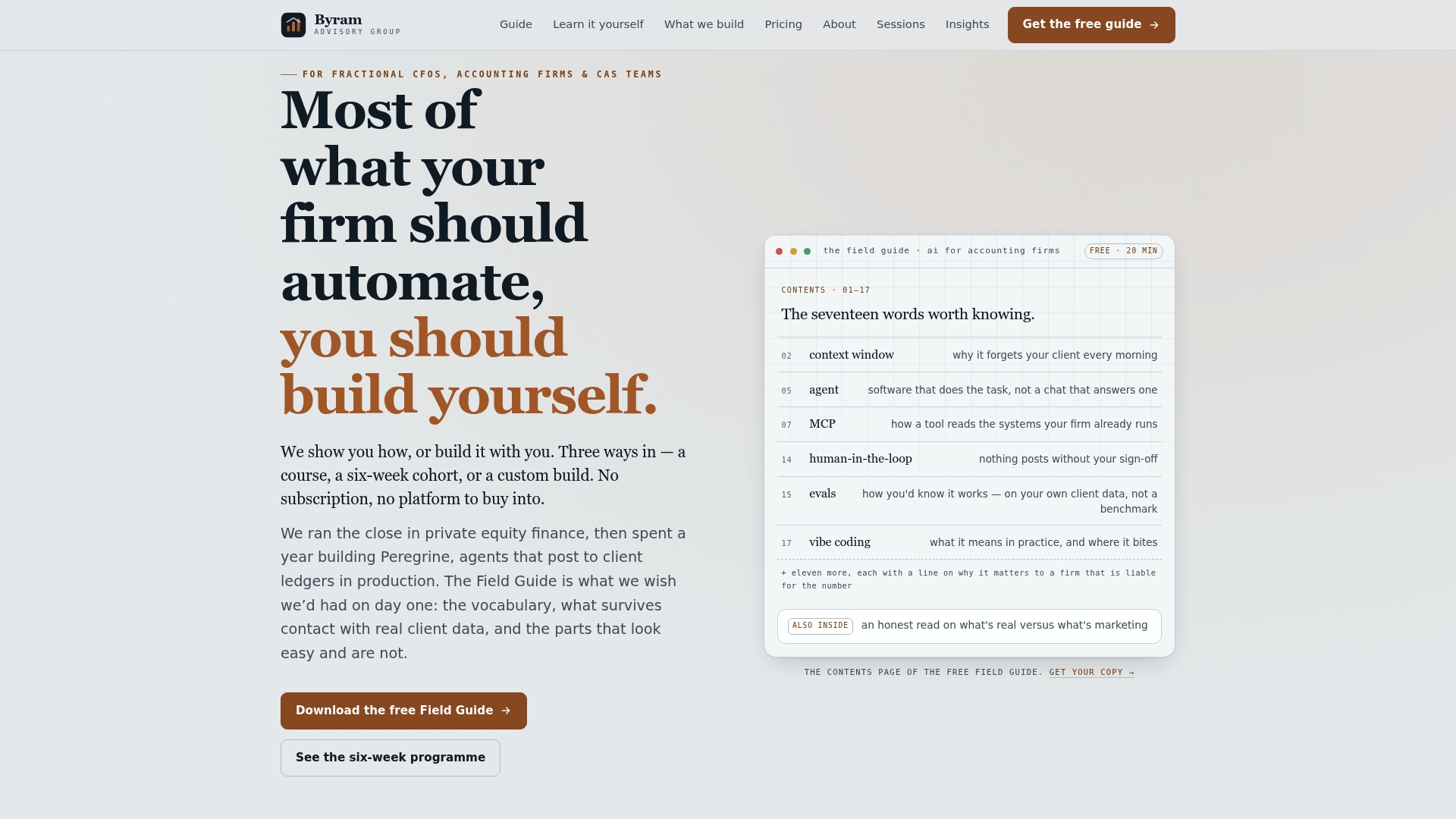
If you're not ready for a full build, start with The Field Guide to AI for Accounting Firms, a free resource that walks through exactly how firms operationalize checks like this one. Want to build it yourself? The DIY AI Implementation Course teaches the actual steps. And if you'd rather have it built for you, see how Peregrine handles this inside your existing QuickBooks setup. Download the guide today and turn your next audit-log scan into the last manual one you ever run.
Where to Find Official Steps and Deeper Guides
For exact screenshots and the most current click paths, Intuit's own support article on the Audit Log in QuickBooks Online is the primary reference, including sign-out logging behavior.
- For Desktop-specific issues, the QuickBooks community thread on finding the Desktop Audit Trail covers common troubleshooting questions.
- For a broader walkthrough comparing Online and Desktop behavior, see this Audit Trail and Audit Log guide.
Frequently Asked Questions
Can I turn off the QuickBooks audit log? No. The Audit Log in QuickBooks Online runs automatically in the background and can't be disabled. It's designed to keep an unbroken record regardless of user preference.
Does the audit log show deleted transactions? Yes. Deleted transactions remain visible in the Audit Log with their original data intact, even though they no longer appear in your books or reports.
How far back does the QuickBooks Online audit log go? Events stay available for two years. If you need history beyond that, export and archive snapshots regularly rather than relying on QuickBooks to store it indefinitely.
What's the difference between the QuickBooks audit trail and the audit log? They're the same concept under different names. QuickBooks Desktop uses "Audit Trail," while QuickBooks Online calls it the "Audit Log."
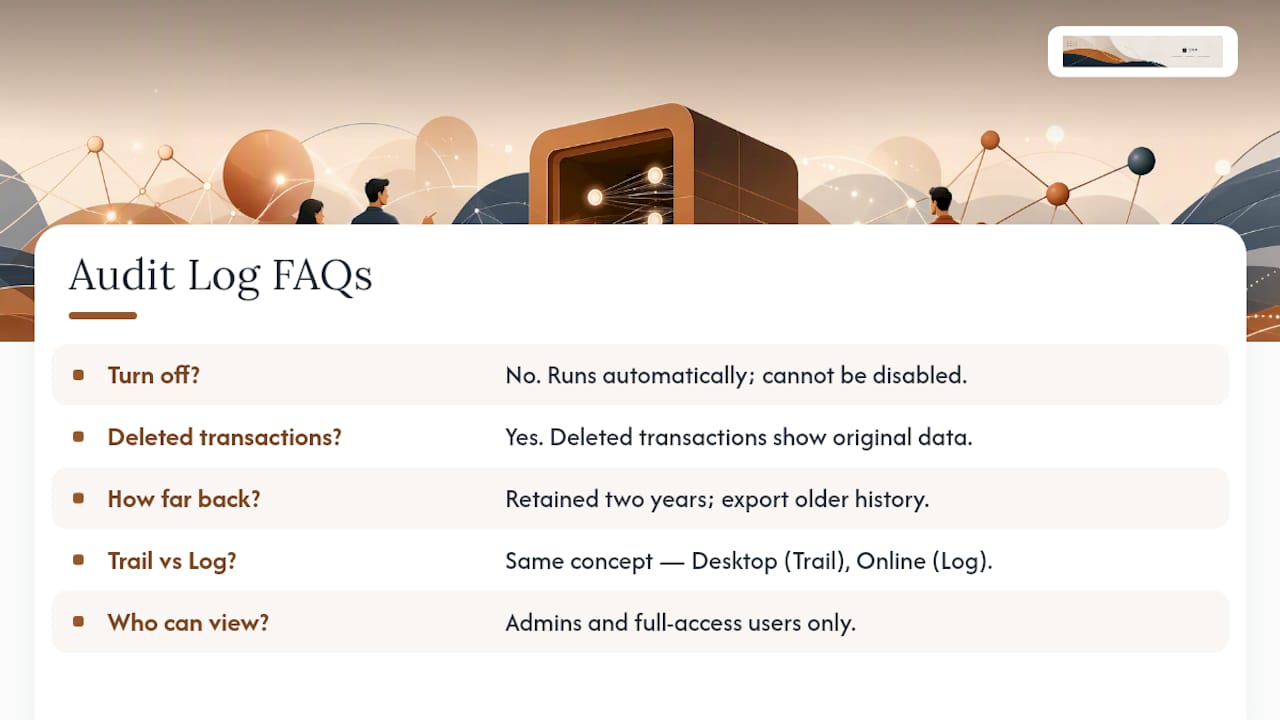
Who can view the audit log in QuickBooks Online? Only users with admin or full access permissions can open it. Standard or limited users generally cannot, even if they have broad transaction access elsewhere in the file.
Sources
- Use the audit log in QuickBooks Online
- QuickBooks Audit Trail & Audit Log: Desktop & Online Guide
- QuickBooks Audit Trail Guide: How to Track Every Change