

QuickBooks automation workflows let you trigger invoices, bill approvals, payment reminders, and project alerts automatically instead of chasing them by hand. QuickBooks Online Advanced ships with template automations and a plain-English builder called Intuit Intelligence for custom ones. Your first move: turn on one relevant template, then build a single guarded custom automation, and confirm the audit log and a reviewer sign-off step are both active before you scale up.
TL;DR:
- Most automation templates cover high-volume transactions like invoices, bills, and payment reminders, and can be activated in about five minutes.
- Custom automations built with Intuit Intelligence are previewed against actual company data and require admin permissions to create or modify.
- The Automation Hub dashboard tracks active workflows, failure alerts, and run history, recommending daily monitoring during initial launch periods.
- Focusing on automations for accounts payable, invoicing, and project workflows yields the most immediate time savings, with a staged approach recommended.
- Building human oversight into automations through risk-based review paths and documented sign-offs reduces errors and ensures compliance.
Table of Contents
- How Do QuickBooks Workflow Templates Work?
- Can You Build a Custom QuickBooks Automation Without Code?
- Where Do You Monitor and Fix Broken Automations?
- Which QuickBooks Workflows Deliver the Biggest Time Savings?
- What Does the QuickBooks Audit Log Actually Record?
- How Do You Build Human Oversight Into Automated Workflows?
- How Do You Pilot a QuickBooks Automation Before Scaling It?
- Why Governance Beats Speed in Automation Rollouts
- Get Hands-On Help Building QuickBooks Automation That Holds Up to Scrutiny
- Sources
- FAQ
How Do QuickBooks Workflow Templates Work?
Every native automation in QuickBooks Online Advanced starts in the same place: Settings → Manage workflows → Templates. Intuit built more than 60 templates covering the transactions that eat the most staff time, organized into a handful of categories: invoices and estimates, bills and purchase orders, payment reminders, and approval routing.
Activating one takes about five minutes if you already know the rule you want enforced. Here's the sequence:
- Open the template library and pick a category that matches a recurring headache (overdue invoices, unapproved bills over a dollar threshold, and so on).
- Name the workflow something your team will recognize six months from now, not "Workflow 1."
- Set the trigger, which is usually a transaction type or date condition, like "invoice becomes 15 days overdue."
- Add conditions to narrow it further, such as customer type, amount range, or class/location tags.
- Choose the action: send an email, request approval, or post an internal reminder.
- Click Save & Turn On.
A few defaults catch people off guard. QuickBooks preloads a basic payment reminder workflow on some accounts automatically, and changing or disabling it requires Admin-level permissions, not just any team member with QuickBooks access. If you're a fractional CFO managing several client files, check who holds Admin rights before you promise a client you'll adjust their reminders. Also worth knowing: templates run on your existing data structure, so messy customer records or missing due dates will quietly break a trigger condition without any error message.
Can You Build a Custom QuickBooks Automation Without Code?
Yes, and this is where QuickBooks Online Advanced separates itself from basic reporting automation. Intuit Intelligence lets you type a plain-English description of what you want, and it drafts a working automation for you to review before anything goes live.

Say something like "notify me when a bill over $5,000 is entered without a matching purchase order," and the system builds a draft with a schedule, a trigger, and an output. You don't touch a line of code.
A few mechanics matter more than the pitch suggests:
- The live preview runs against your actual company data, so you see real transactions the rule would have caught, not a generic demo.
- Outward-facing actions, meaning anything a customer or vendor would actually receive, default to requiring human review before sending.
- Only users with Primary Admin or Company Admin permissions can create or edit these automations at all, which limits who can introduce a new rule into your books.
Pro Tip: Draft the automation, preview it against last quarter's transactions, and count how many times it would have fired. If the number looks wildly off from what you expected, the trigger condition is probably too broad or too narrow before you ever turn it on.
Where Do You Monitor and Fix Broken Automations?
Automation Hub is the dashboard where every workflow you've built, template or custom, reports its status, serving as a critical part of building a financial dashboard in Power BI that finance teams trust. It shows active automations, the next scheduled run, a run history log, and failure notifications when something breaks.
Checking it should become a habit, not a fire drill. A few things worth building into your routine:
- Review failure notifications daily during the first two weeks after launching a new automation, since that's when trigger conditions usually reveal edge cases you missed.
- Pause an automation rather than deleting it when you're diagnosing a problem. Deleting loses your configuration; pausing preserves it.
- Check run history weekly once a workflow has stabilized, looking specifically for skipped runs or repeated failures on the same condition.
- Assign one person, not a rotating cast, to own Automation Hub review. Shared ownership is how failed automations sit broken for a month.
A workflow that fails silently is worse than one that never existed, because your team stops manually checking the thing it was supposed to catch.
Which QuickBooks Workflows Deliver the Biggest Time Savings?
Not every automation is worth building. Start with the transaction types that generate the most repetitive manual touches, and you'll see returns fast.
- Accounts payable: Route bills by approver group and set dollar thresholds, so a $200 supply bill clears automatically while anything over $2,500 lands in a manager's queue. Add a PO-matching condition to catch bills entered without a corresponding purchase order.
- Invoicing and collections: Schedule draft invoices to generate on a recurring date, and layer in escalating overdue reminders at 15, 30, and 45 days rather than one generic nudge.
- Payment reconciliation: Pair processor payment data with scheduled reconciliation runs so deposits match invoices without someone manually cross-checking a bank feed every Friday.
- Project workflows: Trigger milestone invoicing when a project phase closes, route budget approvals before a project exceeds its allocated spend, and send delay notifications when a task misses its deadline.
Pick one from this list, not all four at once. A single well-tuned AP workflow that actually works beats four half-configured ones that generate noise.
What Does the QuickBooks Audit Log Actually Record?
The audit log is your evidentiary backbone for anything an automation touches, and it's more capable than most firms realize until they need it. It records who made a change, what changed, and when, and it retains that history for roughly two years.
QuickBooks Online's audit log keeps history entries viewable in batches of 150 records, with data retained for approximately two years, which is long enough to cover most annual audit cycles but not long enough for multi-year historical review without exporting first.
Automation actions don't disappear into the log anonymously. Entries triggered by Custom Automations get labeled "via Intuit Intelligence", while system-generated changes show as "System Administration." That labeling is what lets you trace a posted entry back to the rule that created it, not just the human who happened to be logged in that day.
A few practical steps turn the raw log into a defensible audit trail instead of a data dump:
- Attach the source document (the invoice, the vendor bill, the bank feed line) to the transaction record itself, so it travels with the entry.
- Save the automation draft that generated the action, including the plain-English description you started with.
- Log the reviewer's decision separately, with a timestamp, especially for anything that required human sign-off before sending.
- Export audit log data quarterly if you're approaching the two-year retention window on a workflow you'll need to reference in next year's audit.
None of this happens automatically just because the audit log exists. The log tells you what changed; it's on your team to connect that change to the evidence and the decision that produced it.
How Do You Build Human Oversight Into Automated Workflows?
An automation with no reviewer is a liability wearing a productivity costume. The fix isn't rejecting automation, it's routing decisions by risk instead of treating every trigger the same way.
- Define three risk bands, low, medium, and high, based on dollar amount, transaction type, or customer relationship, and assign a specific action to each. Low-risk transactions post automatically; medium-risk routes to a queue; high-risk requires named sign-off before anything moves.
- Log every queued item with the machine's suggested action, a confidence indicator where your tool provides one, the reviewer's final decision, and a timestamp for both.
- Require a written reason whenever a reviewer overrides the automated suggestion, not just a rubber-stamped approval or rejection.
- Build exception categories in advance, missing documentation, duplicate transactions, ambiguous tax treatment, and assign a named owner to each category so exceptions never sit unresolved.
- Set a sampling rule, like reviewing 10% of low-risk automated transactions monthly, to catch drift before it becomes a pattern.
This is the same human review architecture that separates firms whose automations survive an audit from firms whose automations create new problems. A narrower automation with a clear reviewer path consistently outperforms a broad, hands-off one when a firm handles multiple client files.
Pro Tip: *Start your risk bands with real dollar figures from last year's transaction history, not guesses.
How Do You Pilot a QuickBooks Automation Before Scaling It?
- Pick one high-value, low-risk use case, then map every document and decision point involved before you build anything. If you can't diagram it on paper, the automation isn't ready to code.
- Enable or build the workflow, configure who gets notified, assign reviewer roles by name, and run it in parallel with your manual process for at least two weeks.
- Track overrides during the pilot. If reviewers override the automation more than occasionally, your trigger conditions need tightening, not your reviewers.
- Document the finalized policy, including who reviews what and when, then scale to a second use case only after the first one runs clean for a full reporting cycle.
- Monitor ongoing performance against three metrics: error rate, override frequency, and automation uptime in Automation Hub.
Firms that scale automation successfully add one workflow at a time. Firms that scale badly turn on six templates in a single afternoon and spend the next quarter debugging all of them simultaneously.
Why Governance Beats Speed in Automation Rollouts
Most firms treat automation as a speed problem: how fast can we get invoices out, bills approved, reminders sent. That framing misses what actually breaks these systems. The failures Byram-advisory sees aren't slow automations, they're fast automations nobody was watching.

A mid-sized advisory client had three people manually re-checking bill approvals every Friday because the original automation had drifted, catching duplicates it wasn't supposed to catch and missing legitimate high-dollar bills it should have flagged. The fix wasn't more automation. It was rebuilding the trigger conditions with a documented reviewer path and a monthly sampling check, work that took less time than the weekly manual re-check it replaced.
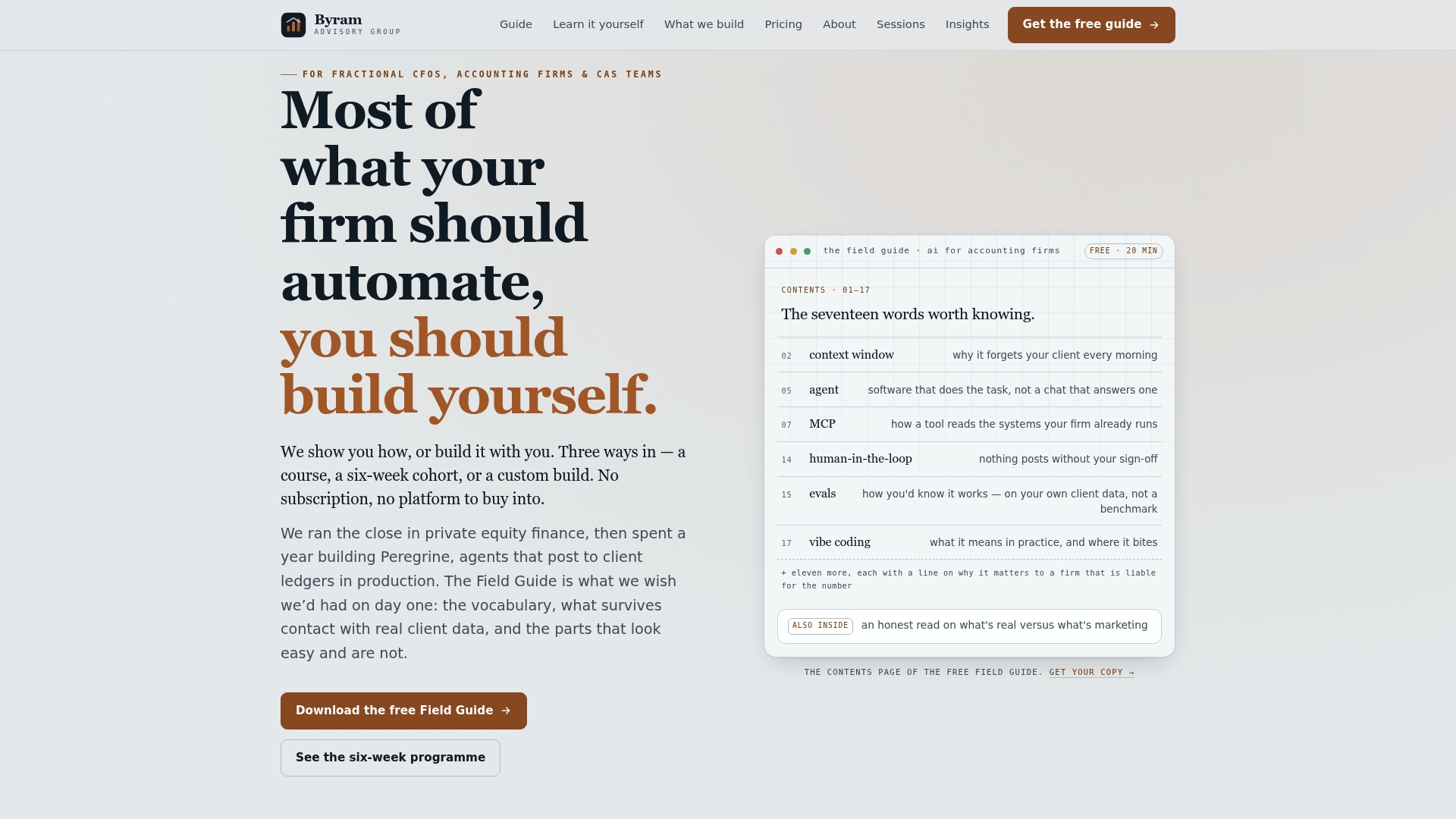
If you want a structured way to think through your own rollout, the Field Guide walks through the same risk-banding approach.
— Owen
Get Hands-On Help Building QuickBooks Automation That Holds Up to Scrutiny
Byram-advisory builds the QuickBooks automation your firm keeps after the engagement ends, not a black-box tool you rent forever. Clients own the delivered code and process documentation outright, so the workflows keep running independently of Byram once the build is handed off, and every automated action passes through documented process steps and mandatory human sign-off before it touches a client's books.
If you want a fast, focused pilot rather than a slow overhaul, The Sprint is a fixed-fee engagement built to get one governed automation running and tested inside weeks, not quarters. Teams that need their whole staff trained on implementation and oversight instead of a single build should consider The Bootcamp, a cohort program that teaches the governance playbook directly. Either way, engagements typically move through the same arc: pilot one workflow, build it out with documented reviewer controls, then hand it off with the code and process documentation in your hands.
Not ready for a paid engagement yet? Download the Field Guide to AI for Accounting Firms first and map your own pilot before you talk to anyone.
This article is general information, not a substitute for advice from a qualified financial advisor. Consult a qualified financial professional about your own circumstances before acting on anything here.
Sources
FAQ
What Is an Automated Workflow in QuickBooks Online?
An automated workflow in QuickBooks Online Advanced is a rule that triggers an action, like sending a reminder or requesting an approval, when a transaction meets conditions you set. It can come from a prebuilt template or from a custom automation you describe in plain English.
How Do I Find Automated Workflows in QuickBooks Online?
Go to Settings → Manage workflows to see templates, and check Automation Hub to view any custom automations you've already built, along with their run history and status. Both live inside QuickBooks Online Advanced, not the Simple Start or Essentials tiers.
Why Do Some Accountants Dislike QuickBooks Online?
Accountants who prefer desktop tools often cite QuickBooks Online's reporting limitations and the learning curve of migrating multi-entity client files. That said, QuickBooks Online Advanced closes much of that gap with native workflow templates and audit log visibility that desktop versions handle differently.
What Are Examples of Automated QuickBooks Workflows?
Common examples include overdue invoice reminders, bill approval routing by dollar threshold, milestone-based project invoicing, and PO-matching alerts for accounts payable. Firms typically start with one accounts payable or invoicing workflow before expanding into project and reconciliation automations.
Does Byram-advisory Build Custom QuickBooks Automations?
Yes. Byram-advisory offers The Sprint, a 2000 USD one-off engagement to build and pilot one governed automation, along with cohort training through The Bootcamp for teams that want to build ongoing internal capability. Pricing for other engagements like Close Teardown and The Build is available directly on the Byram-advisory site.