

Bank rules in QuickBooks Online automatically categorize recurring bank-feed transactions and can auto-post them once you trust the match. Go to All apps → Accounting → Rules → New rule, and the first setting to nail down is whether the rule applies to Money in or Money out and which account it covers.
- Set the account scope correctly first: a rule scoped wrong will silently skip transactions.
- Expect real time savings, but know the ceiling: QuickBooks Online caps you at 2,000 bank rules per company file.
Pro Tip: Build your first five rules around your most repetitive vendors, not your biggest dollar amounts. Frequency saves more review time than size.
Key Takeaways
QuickBooks bank rules automate categorization within a five-condition limit, but high-volume exceptions and split transactions eventually require automation beyond the rules engine.
| Point | Details |
|---|---|
| Start with account scope | Set Money in/out and the correct account before adding conditions, or the rule will skip transactions. |
| Use up to five conditions | Combine Description or Bank text with Amount to cut down false matches on variable-amount vendors. |
| Test before auto-posting | Run new rules with auto-post off for at least a week, then confirm behavior by signing in again. |
| Know the 2,000-rule ceiling | Prune and consolidate regularly since a bloated rule list slows your own review process. |
| Graduate to automation when needed | Byram-advisory's QuickBooks-integrated tools handle split allocations and exceptions rules can't. |
Table of Contents
- How Do You Create a Bank Rule in QuickBooks Online?
- How Do You Review Transactions Before They Post?
- What Conditions Can a Bank Rule Use, and What Do Good Templates Look Like?
- Why Isn't Your Bank Rule Applying, and How Do You Migrate Old Rules?
- What Are the Limits and Best Practices for Bank Rules?
- When Do Bank Rules Stop Being Enough?
- When Rules Aren't Enough, What's the Next Step?
- Sources
How Do You Create a Bank Rule in QuickBooks Online?
Creating a rule is faster than most people expect once you know the sequence. Here's the path that works every time:
- Open Rules from All apps → Accounting, or click Create a rule directly from a transaction on the For Review tab, a shortcut that speeds things up considerably, according to QuickBooks' own productivity guidance.
- Click New rule, then name it something specific ("ACME Software Sub," not "Rule 1").
- Choose Money in or Money out, then select the account, or apply it to All bank accounts.
- Add conditions using Description, Bank text, or Amount, with match types Contains, Doesn't contain, or Is exactly. You get up to five conditions per rule.
- Set what the rule applies: Transaction type, Category, Payee, and Tags.
- Save the rule.
From the Rules list, you can:
- Drag rules to reorder priority (QuickBooks applies the first matching rule it finds).
- Copy an existing rule as a starting template for a similar vendor.
- Disable, re-enable, or delete rules without losing their settings.
Pro Tip: Duplicate a working rule before editing it for a new vendor. It's faster than building from scratch, and you keep a backup if the edit goes sideways.
How Do You Review Transactions Before They Post?
Rules don't disappear into the background. They surface right where you already work, in the Bank Transactions screen's For Review and Pending tabs, and QuickBooks flags recognized vendors there for your confirmation before anything hits your books.
Once a rule fires, you'll see a RULE badge in the Category field. If you've turned on automatic posting, you'll see an AUTO badge instead, and that transaction skips your review entirely.
- Auto-post rules run when you sign in, upload a bank file, or edit the rule itself, not on a fixed schedule.
- Filter the transaction list by Rules, No rules, or Auto-post rules to spot gaps fast.
- Test a new rule with auto-post off for a week before trusting it unsupervised.
Pro Tip: Turn off auto-post while testing, then flip it on and sign back in. You'll see the effect on Pending transactions immediately, which is the fastest way to confirm a rule actually works.
What Conditions Can a Bank Rule Use, and What Do Good Templates Look Like?
Every rule is built from up to five conditions, and choosing the right field matters more than people assume. Description is the cleaner, human-readable version of a transaction, but banks sometimes truncate it. Bank text is the raw feed data, more exact but noisier, since it can carry extra codes or reference numbers the description drops. QuickBooks' own guidance notes this tradeoff directly: pick description for clean vendor names, bank text when you need to catch a specific reference string description strips out.
Combining a text condition with an amount range is the single best way to cut false matches, especially for vendors who bill variable amounts.
A few templates worth copying directly:
- Subscription vendor: Bank text contains "ACME SUB" → Category: Software subscription; Money out; auto-post off while testing.
- Payroll deposit: Description contains "GUSTO PAYROLL" and Amount is between $2,000 and $8,000 → Category: Payroll expense; Money out.
- Customer refund: Description contains "REFUND" → Category: Sales returns; Money in; scoped to your operating account only.
- Recurring rent: Bank text is exactly "RENT MGMT CO ACH" → Category: Rent expense; Money out; single account scope.
Name each rule to describe its function, not just the vendor, so a teammate can understand it without opening the conditions.
Why Isn't Your Bank Rule Applying, and How Do You Migrate Old Rules?
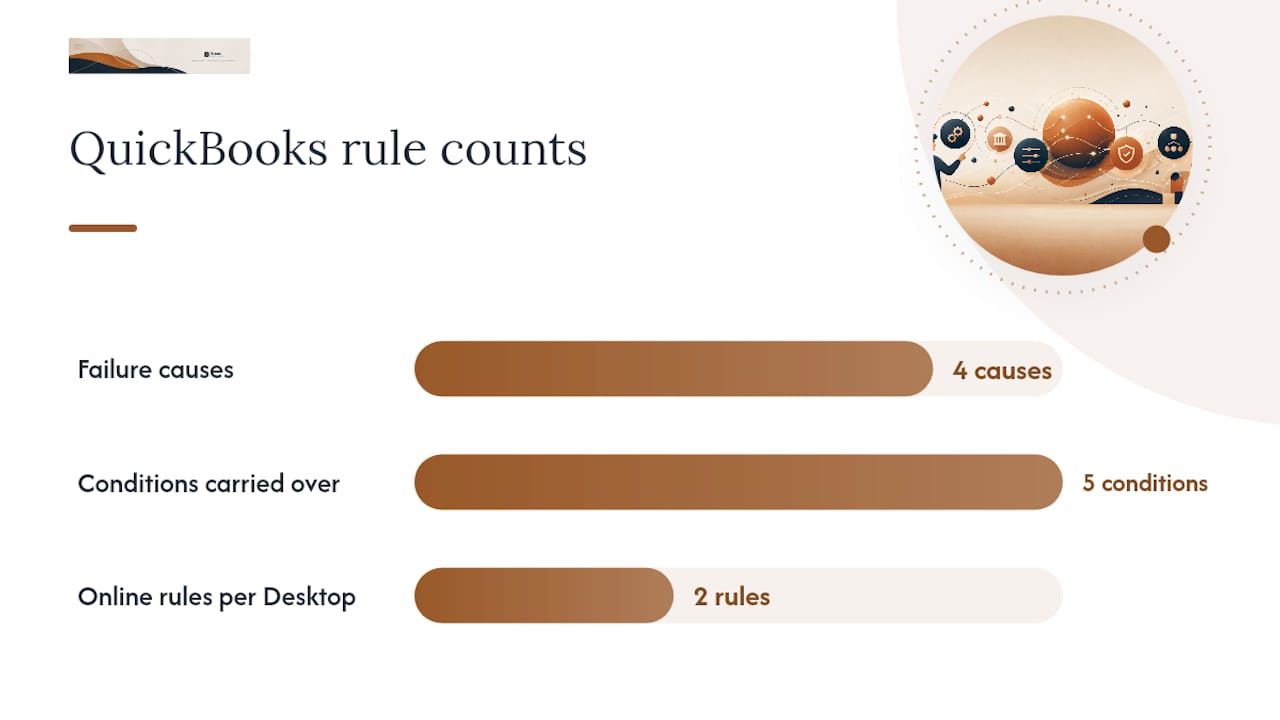
Most rule failures trace back to one of four causes, and QuickBooks' troubleshooting documentation walks through each:
- Wrong field selected. A condition written for Description won't catch text that only appears in Bank text, and vice versa.
- Rule priority conflicts. A broader rule higher in the list can grab the transaction before your specific rule gets a chance.
- Account scope mismatch. A rule scoped to one account silently ignores transactions from every other account.
- Condition too strict or too loose. "Is exactly" fails on a single stray character; "Contains" can catch too much.
To debug, click into a transaction and show the full bank description, then compare it character by character against your condition. Reorder rules, disable overlapping ones, and retest with a manual bank update.
If you're migrating rules from QuickBooks Desktop, expect some translation loss: Begins with and Ends with conditions convert to Contains, only the first five conditions carry over, and a single Desktop rule covering both Money in and Money out splits into two separate rules online. Review every migrated rule before trusting it.
What Are the Limits and Best Practices for Bank Rules?
The hard ceiling is 2,000 rules per company, and a long, unpruned list slows down your own review process long before you hit that number.
- Name rules by function, not vendor abbreviation, so anyone on the team understands them at a glance.
- Start with narrow conditions and widen only if the rule keeps missing valid matches.
- Test new rules with auto-post off for at least a week before letting them run unsupervised.
- Schedule a recurring 15-minute rule audit, weekly for high-volume accounts, monthly otherwise.
- Avoid two rules that could both match the same transaction; QuickBooks will pick one, not both.
Rule creation and editing require banking or accounting-level user permissions, so lock this down if multiple people touch the same file.
Pro Tip: A five-minute Friday rule audit catches drift before it becomes a monthly close headache.
When Do Bank Rules Stop Being Enough?
Rules break down fast once volume climbs: split transactions across multiple categories, conditional logic that needs more than five criteria, or exceptions that pile up daily instead of weekly. If you're manually fixing the same category error every week, or reconciliation keeps drifting between close cycles, that's a signal the rule engine has hit its ceiling.
- Split-percentage allocations across departments or classes
- Multi-condition logic beyond what five fields can express
- Growing audit exceptions that no rule adjustment resolves
At that point, scripted matching or a QuickBooks-integrated automation layer usually solves what rules can't.
Pro Tip: Track how many manual overrides you make per week. Three or more on the same category is your cue to automate that workflow, not add another rule.

The one change that actually reduces manual fixes
Standardize vendor naming at the bank-feed level before you write a single rule, then audit rules weekly instead of adding new ones reactively. Most rule chaos comes from inconsistent text, not insufficient conditions.
When Rules Aren't Enough, What's the Next Step?
Byram-advisory builds QuickBooks-integrated automation that picks up exactly where rules top out, catching anomalies and reducing manual handoffs without sacrificing the oversight your close process depends on.
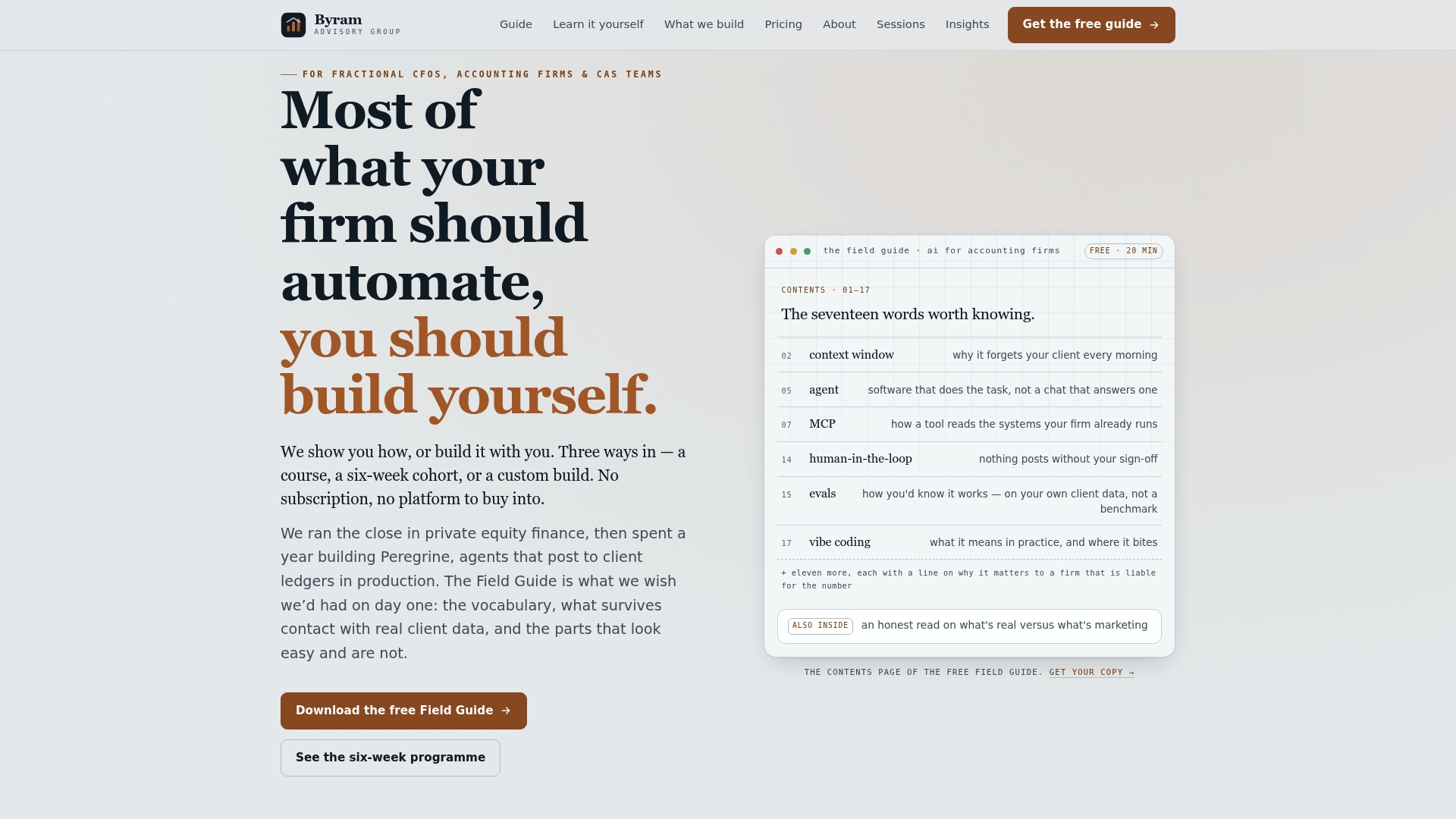
If you're not ready for a custom build, start with The Field Guide to AI for Accounting Firms, a free breakdown of where automation actually pays off in a bookkeeping workflow. For firms ready to implement hands-on, the DIY AI Implementation Course walks through transaction matching and reconciliation automation step by step. Download the Field Guide first and see which piece of your close process is the best candidate to automate next.
Sources
- Set up bank rules to categorize online banking transactions in QuickBooks Online