

QuickBooks Online can automate recurring invoices, bills, sales receipts, and other repeat transactions through three template types: Scheduled, Reminder, and Unscheduled. You build a template once from Settings, or by converting an existing transaction, then set the interval, start and end dates, and payment settings. Autopay requires QuickBooks Payments. After setup, the main job left is reviewing templates on a schedule, so they don't quietly fail.
TL;DR:
- Recurring templates require regular review through the Recurring Template List report to prevent silent failures caused by expired payment methods or reached limits.
- Using the correct template type is critical, with Scheduled for automatic, fixed transactions, Reminder for review before posting, and Unscheduled for manual triggers.
- Autopay with QuickBooks Payments depends on current customer payment details and proper template settings, avoiding silent skips due to expired cards or reached end dates.
- Building templates from existing transactions or by duplication speeds setup but requires clear naming conventions and ongoing monitoring for accuracy.
- Most failures stem from outdated payment methods, template setting reversions, or exceeded limits, highlighting the importance of ongoing oversight beyond initial creation.
Table of Contents
- What You Need Before Setting Up Recurring Transactions QuickBooks Users Rely On
- How Do You Create a New Recurring Transaction in QuickBooks Online?
- Scheduled, Reminder, or Unscheduled: Which Template Fits Your Bill?
- How Scheduling Controls and Autopay Actually Work
- Managing Templates: The Recurring Template List Report
- Why Do Recurring Transactions Fail (And How to Fix Them)?
- Best Practices That Keep Recurring Templates From Becoming a Liability
- How Byram Advisory Approaches Recurring Transaction Oversight
- The Real Weakness in Most Recurring Transaction Setups
- Sources
What You Need Before Setting Up Recurring Transactions QuickBooks Users Rely On
Before touching a template, confirm you have the right access. You'll need an active QuickBooks Online subscription and user permissions that allow editing recurring transactions since some standard user roles restrict this.
- Decide the billing frequency, payment method (card or ACH), and whether the transaction should auto-charge or wait for approval.
- If you want autopay on recurring sales receipts, you'll need QuickBooks Payments (merchant services) connected and active.
- Inventory the accounts, customers, vendors, and products or services each template will touch, so you're not hunting for item names mid-setup.
Skipping that last step is the single most common reason setup takes three times longer than it should.
How Do You Create a New Recurring Transaction in QuickBooks Online?
Open Settings (the gear icon) and choose Recurring transactions, or navigate through All Apps > Accounting > Recurring transactions. From there, the process to create recurring invoices and other transactions in QuickBooks Online follows a consistent pattern regardless of transaction type.
- Select New, then choose the transaction type: invoice, bill, sales receipt, check, journal entry, or another supported type.
- Enter a clear Template name you'll recognize later, such as "Monthly — Rent — Downtown Office."
- Set the Type: Scheduled, Reminder, or Unscheduled (more on choosing between these below).
- Define the Interval (weekly, monthly, yearly, and so on), the Start and End dates or a Maximum occurrences count.
- Fill in the customer or vendor, the line items or accounts, the amount, and any online payment settings if the transaction involves customer billing.
- Save the template.
To speed up setup, you don't have to start from scratch every time. Open any existing invoice or bill, and instead of saving it normally, select "Make recurring" from the menu to convert it directly into a template. You can also duplicate an existing recurring template and adjust the amount, customer, or dates. This is faster than building similar templates one at a time, especially when you manage several client accounts with near identical billing structures.
Pro Tip: Name templates by function, not by client, when you manage multiple entities. "Monthly — Software Subscription" is easier to audit across a client list than a dozen templates each named after a different company.
Scheduled, Reminder, or Unscheduled: Which Template Fits Your Bill?
QuickBooks Online offers three distinct template types, and picking the wrong one is where most billing errors start.
- Scheduled creates and sends the transaction automatically on the date you set. Use it for fixed, predictable amounts like rent, a flat monthly retainer, or a subscription invoice where the number never changes.
- Reminder builds a draft on schedule but waits for your review before it posts or sends. Use it for bills with variable amounts, like a utility bill that changes month to month, where you want eyes on it first.
- Unscheduled sits in the list with no automatic timing at all. Use it as a reusable master template for irregular or project-based billing you'll trigger manually when the work happens.
Scheduled saves the most time but carries the most risk if an amount changes unexpectedly. Reminder trades some automation for a safety check. Unscheduled trades automation entirely for flexibility.
How Scheduling Controls and Autopay Actually Work
The Days in advance setting determines how early QuickBooks generates the transaction before its due date, which matters when you want an invoice sitting in a customer's inbox a week ahead rather than the morning it's due. Combined with the Interval, Start and End date, and Maximum occurrences fields, these controls decide exactly when and how many times a template fires.
One limitation trips people up constantly: QuickBooks cannot encode two different intervals inside a single template. If a vendor bills you twice a month on different fixed dates, or a client pays semiannually on an unusual pattern, you need separate templates for each cadence rather than one template trying to do both.
For autopay through recurring sales receipts, QuickBooks Payments handles the actual charge. Before flipping that switch, run through this checklist:
- Confirm the customer's card or bank account is current and hasn't expired.
- Verify the sales receipt template's Type is set to Scheduled, not Reminder.
- Check that the End date or Maximum occurrences hasn't already been reached.
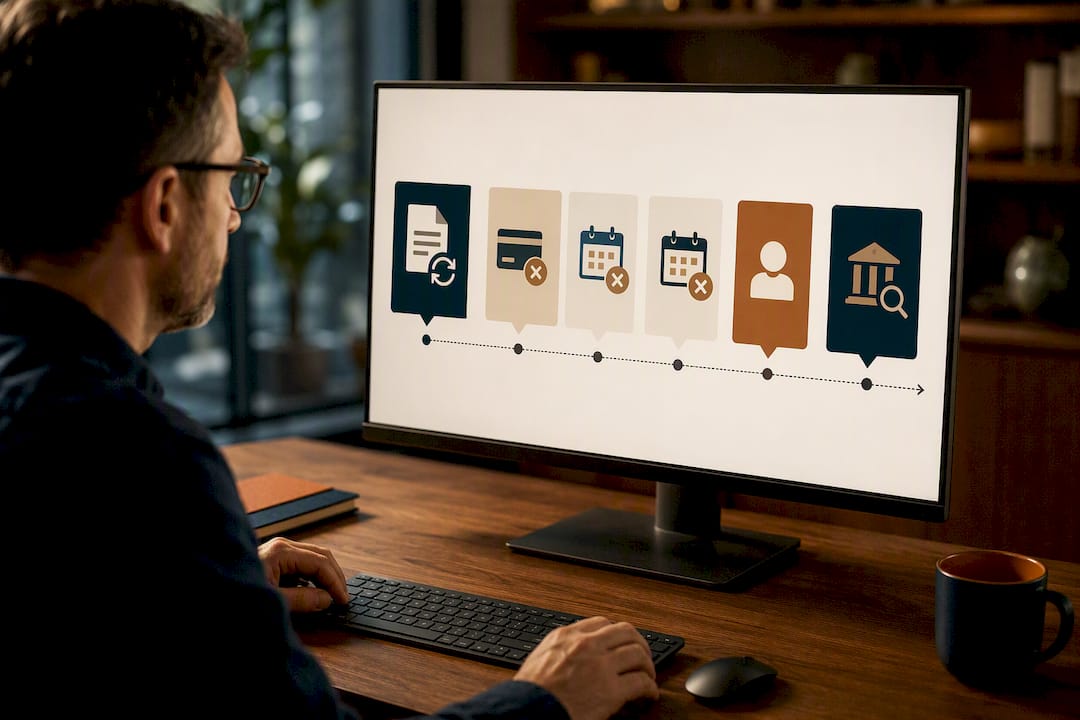
QuickBooks will skip a scheduled run entirely if the payment method on file has expired, without necessarily flagging it loudly. That silence is exactly what causes the "why didn't we get paid" conversation three weeks later.
Managing Templates: The Recurring Template List Report
The fastest way to see every template you've built, and what it touches, is the Recurring Template List report under Reports > Standard reports. It's the tool for reviewing recurring transactions across an entire company file at once, and it shows which Chart of Accounts items each template is linked to.
- Run the report quarterly at minimum, more often if you manage several client entities.
- Open any template from the list to edit its amount, interval, or linked accounts.
- Use the Duplicate option to spin off a variant without disturbing the original.
- Click Use on an Unscheduled or Reminder template to generate a transaction on demand, outside its normal timing.
- Before deleting an account from the Chart of Accounts, check this report first. You cannot delete an account still linked to an active recurring template. Unlink or reassign it in the template first, or the deletion will simply fail.
When a template starts behaving oddly, rebuilding it from scratch and deleting the broken version is often faster than trying to debug a corrupted recurrence pattern.
Why Do Recurring Transactions Fail (And How to Fix Them)?
Most recurring transaction failures trace back to one of four causes.
- An expired or declined card is the top culprit for skipped sales receipts. Check the customer's payment method first.
- The template Type may have quietly reverted to Reminder or Unscheduled instead of Scheduled, so nothing fires automatically.
- The template's End date or Maximum occurrences count may have already been reached, which stops all future runs silently.
- A settings change, like a deactivated product or service tied to a line item, can block generation entirely.
If a template appears to have skipped a cycle, manually select Use to generate the transaction while you diagnose the root cause, rather than leaving the client unbilled for a full cycle. If the template is corrupted beyond a quick fix, recreate it fresh and delete the old one instead of chasing the bug indefinitely.
Pro Tip: Set a recurring calendar reminder of your own, ironically, to check the Recurring Template List monthly. The templates that fail silently are always the ones nobody's watching.
Best Practices That Keep Recurring Templates From Becoming a Liability
A few habits separate a clean recurring transactions setup from one that quietly accumulates errors over two years.
- Use consistent naming like "Monthly — Rent — [Property]" so templates are scannable at a glance across dozens of entities.
- Set a review cadence (monthly or quarterly) and document who owns updating each template when a price or vendor changes.
- Build Unscheduled templates as master copies, then duplicate them for live use. That way editing the master never disturbs an active schedule.
- For firms on QuickBooks Online Advanced, use built-in workflow automation to add approval steps before higher-dollar recurring items post automatically.
- For firms managing recurring transactions across many client entities, a monitoring layer that flags failed runs across accounts saves far more time than manually checking each company file.
How Byram Advisory Approaches Recurring Transaction Oversight
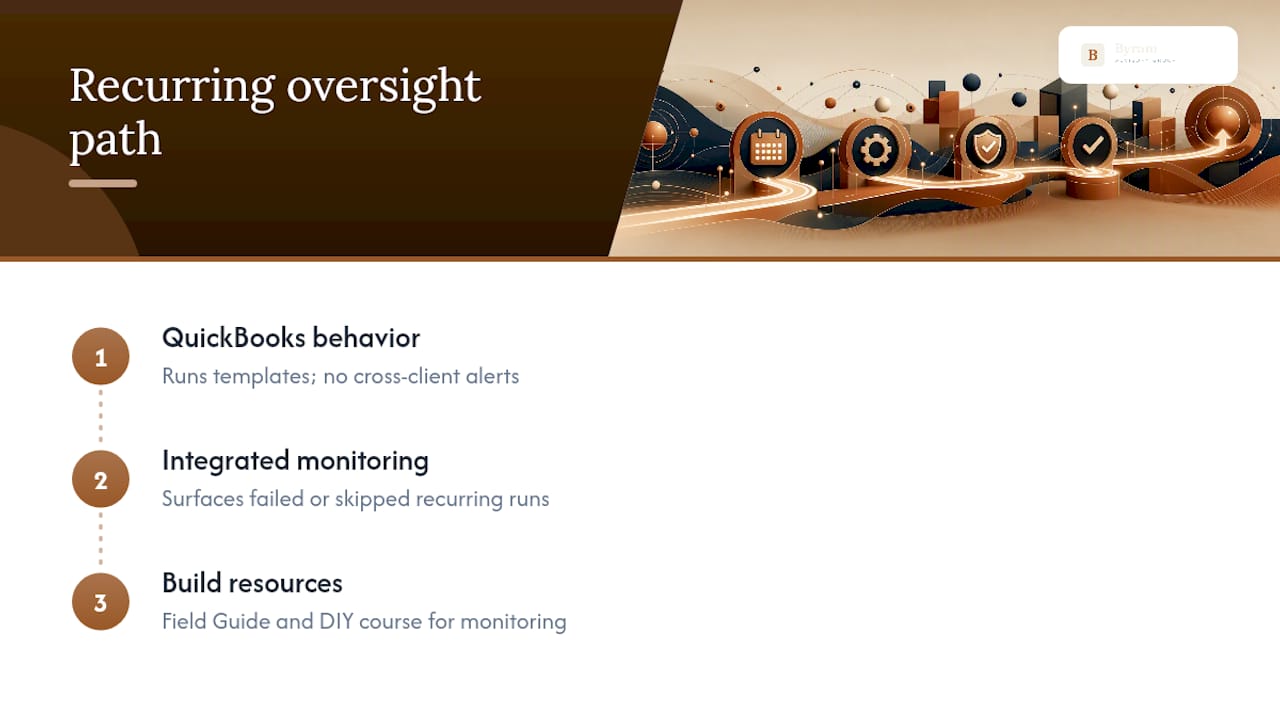
Recurring transactions are exactly the kind of repetitive task that benefits from a second layer of oversight. QuickBooks handles the mechanics of firing off a template, but it won't call you when a card expires across twelve client files at once. Some platforms integrate with QuickBooks to surface failed or skipped recurring runs across an entire client roster, cutting down the manual remediation work of checking each report by hand.
For firms that want a structured path to building this kind of oversight themselves, the Field Guide to AI for Accounting Firms walks through practical automation steps, and the DIY AI Implementation Course offers hands-on training for teams ready to build monitoring into their existing QuickBooks workflows.
The Real Weakness in Most Recurring Transaction Setups
Most QuickBooks guidance on recurring transactions stops at "here's how to build the template," and that's the wrong finish line. Building the template is the easy part. The failure mode nobody talks about enough is what happens six months later, when the card on file expires, nobody notices, and a client goes unbilled for two cycles before anyone catches it in a bank reconciliation.
The conventional advice treats recurring transactions as a set-and-forget feature. They aren't. They're a standing liability that needs the same review discipline as any other control in your books. A Scheduled template with no monitoring behind it is a silent risk, not a time saver, once you're running more than a handful of them.
If you take one thing from this guide, prioritize the Recurring Template List report over the initial setup steps. Setup happens once. Review happens forever, and it's the part firms skip until a client asks why an invoice never went out.
— Owen
Sources
- Create recurring invoices and other transactions in QuickBooks Online
- QuickBooks recurring transactions: your secret weapon